Symptom description: What should I do when the computer prompts “Reboot and Select proper Boot device” and cannot enter the operating system? Checking one by one according to the tutorial can usually solve it. The fault phenomenon is shown in the figure below:
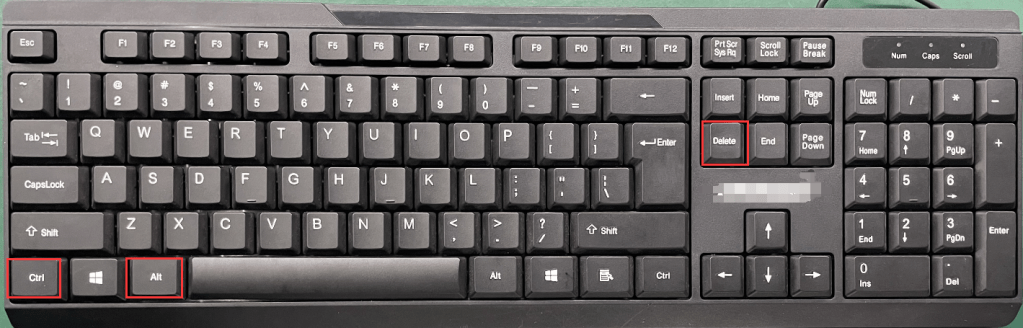
1-1. Press the keyboard Ctrl+Alt+Del key to restart. After restarting, quickly tap the keyboard Del key to enter the BIOS Setup, and then select Boot>Hard Drive BBS priorites>Boot Option #1 to set the system hard disk as the first boot item. (In this tutorial, P0: GIM512 is the system disk) After the setting is successful, press F10 to save and exit, and test whether it can enter the operating system normally. (Note: This step is applicable to the operating system installed in Legacy+MBR mode)
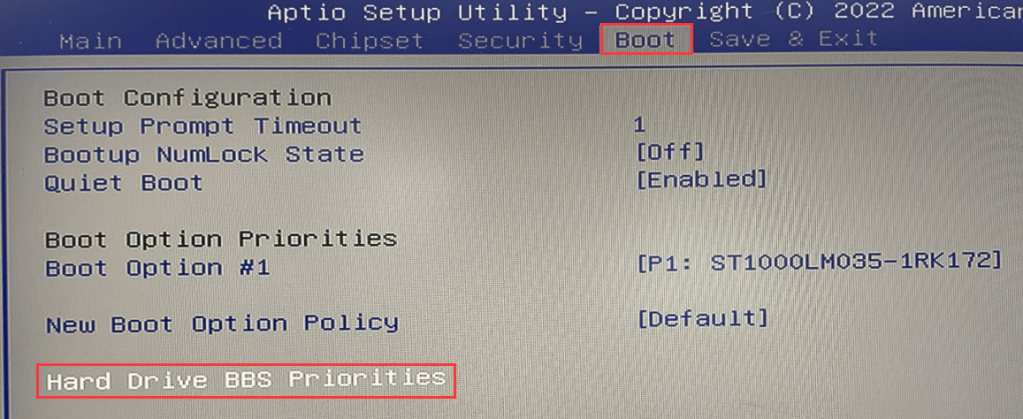
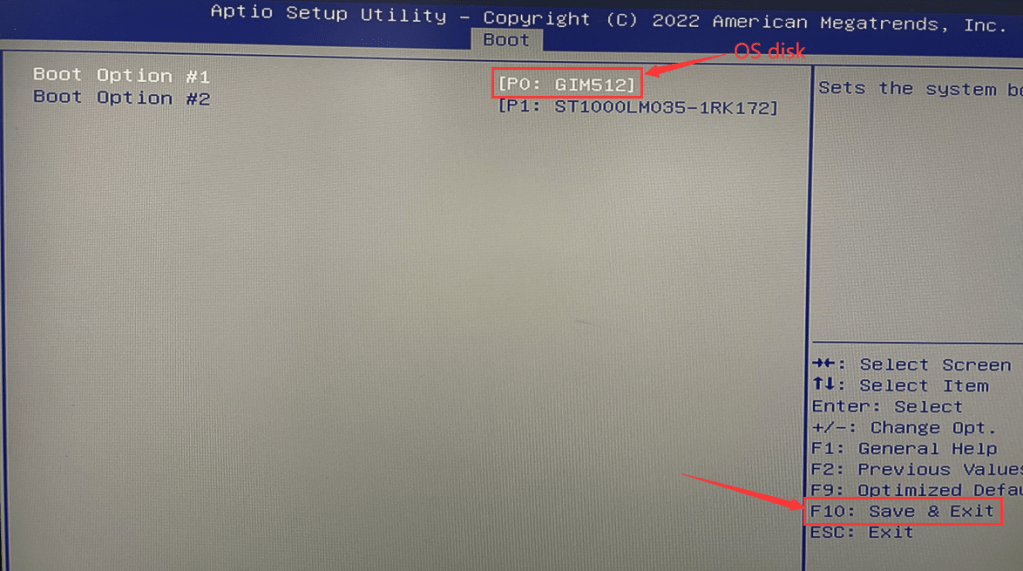
2-1. Press the keyboard Ctrl+Alt+Del key to restart. After restarting, quickly tap the keyboard Del key to enter the BIOS Setup, and select Boot>Boot Option #1 to select the SSD prefixed with Windows Boot Manager as the first boot item, and the setting is successful. Then press F10 to save and exit. (Note: This step applies to operating systems installed in UEIF+GPT mode)
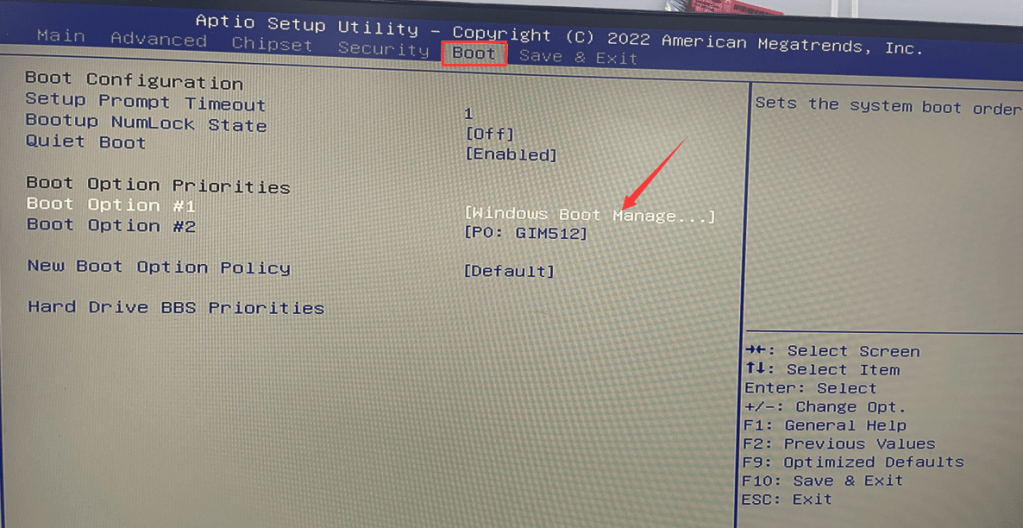
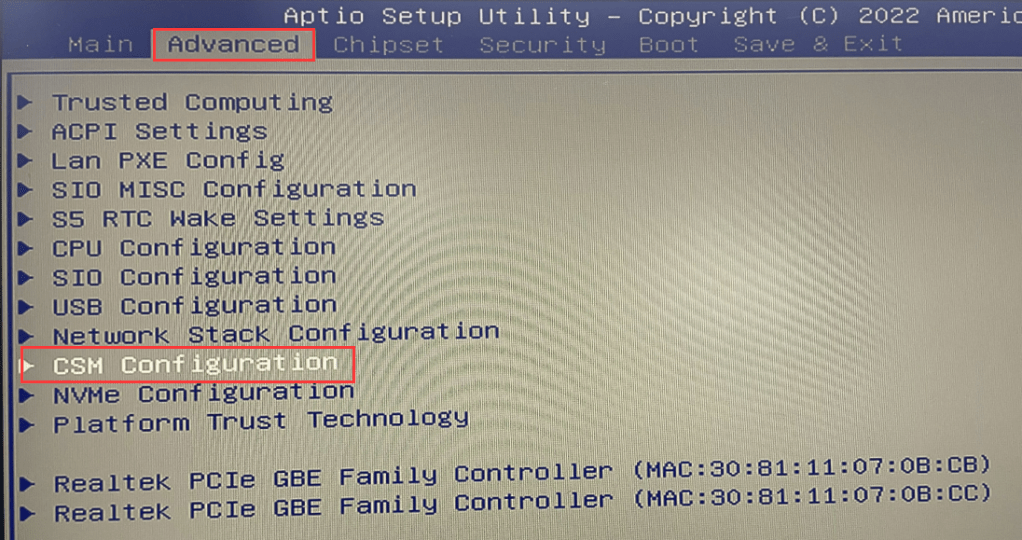
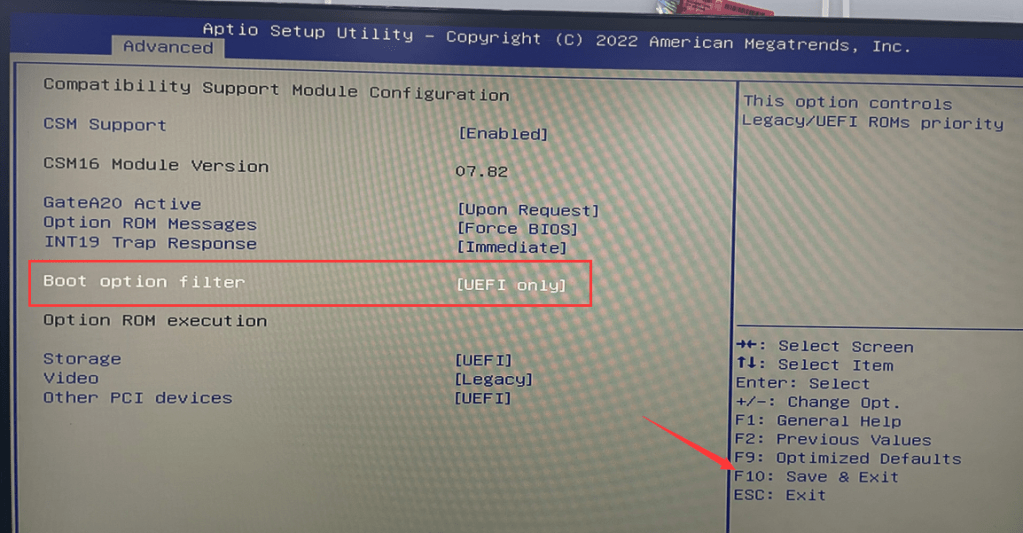
2-2. If you can enter the operating system normally, it will be considered as a solution. In order to avoid similar problems in the later stage, you can enter Bios again and select Advanced>CSM Configuration>Set the Boot option filter to UEFI only. After the setting is successful, press F10 to save and exit .
3-1. If the fault persists after following the above steps, please enter the Boot>Boot Option #1 page in the BIOS to confirm whether the recognized SSD name is “SATAFIRM S11”. If “SATAFIRM S11” is recognized, it means yes The SSD enters the write-protected mode. In this mode, we need to update the SSD firmware and reinstall the operating system to solve the problem. (Note: After entering the write-protected state, the SSD data has been cleared, and the data cannot be recovered!)
 Mini PC